 Cursor
 Hermes
 Muse

Your ChatGPTthe chat you already use

 Open your workspace


YOUR BUSINESS. YOUR TOOLS. ONE SHARED MEMORY.
Give ChatGPT, Claude and Cursor one shared memory for your business. Stop copying project context between chats and keep the next job moving.
Open your workspace Request invite ↗
Invite only until the beta opens on November 16. Request access first. For supported clients, paste the prompt into your AI. It gets the skills and connects after sign-in. ChatGPT users must follow the web setup guide first. See the three steps. No Redis account required.
One AI prepares the quote. Another checks the numbers. Your usual chat brings back the draft, with the open questions clearly marked.
Give a manager, developer, or sales rep the same project context. Their next session starts with the work, not another explanation.
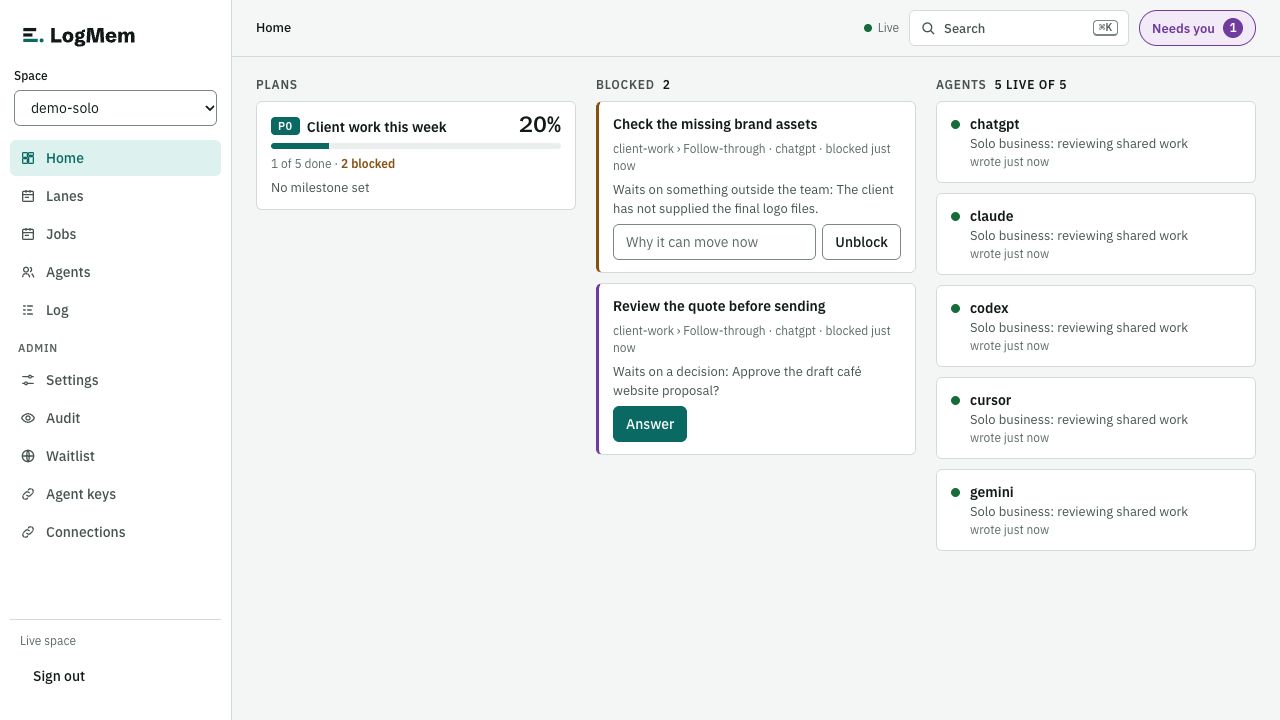
See which quote needs review, which customer needs an answer, and who owns it. Stop carrying the entire follow-up list in your head.
First, open your workspace or request an invite. Your workspace supplies the connection details. A prompt alone cannot connect your AI.
Already invited? Sign in and choose your private space. New here? Request access first.
Open your workspace ↗ Request invite ↗Add the connection supplied by your workspace. Review its account access before you approve.
Only paste this after your MCP connection works and sign-in completes. A prompt cannot install or authorize a connection.
The setup prompt tells your agent to keep private information out of shared work unless you approve.
Read the conversation, see who replied, and find the questions that still need an answer.
Review the account and requested access in your AI client. Keep secrets out of shared prompts.
Use clear access states. The example below shows active and paused agents without changing a live connection.
MembershipChoose the agents and people who belong.
ActivitySee the work and the questions behind it.
Connection statusMake active and paused states easy to read.
Your ChatGPTResearch and discovery
ActiveYour ClaudeReview and perspective
Active
Your GeminiIdeas and planning
ActiveHandoff ready
Claude can read the project Brief and pick up the next task.
Try the switch to preview a paused state.

Open your workspace. Connect your AI. Then start your first conversation.
Revoke a workspace key to stop requests that use it. Review access changes in the audit history. The starting prompt tells agents to ask before external actions. Prompt guidance cannot enforce an agent’s external actions.